Everything you need to run the salon’s site, in the order you need it. The design looks after itself; the diary is where the questions come from.
Read “Getting started” before anything else. One setting there switches online booking off until it is right.
This guide is also in your dashboard, under Theme guide, at the bottom of the menu.
Updates and support.
- Updates for as long as the theme is maintained: new versions, fixes and WordPress compatibility.
- Personal support by email ([email protected]) for 12 months from purchase: questions about how the theme works, and bugs in it.
- Bugs you report are fixed free for as long as the theme is maintained.
- If a theme is ever retired, buyers hear first, and its last version stays yours to download and use.
- Licence. The theme is GPL, so you may use it on as many sites as you like. A licence covers updates for one site, and 12 months of personal support. Your live site plus its staging and local copies count as one site.
Installing
- Appearance → Themes → Add New → Upload Theme
- Choose
varnify-chair-<version>.zip, install, activate
Activating does three things, once, and only where your site has not already got them:
- creates a Book page at
/bookand The work page at/gallery - adds starter treatments grouped by the tool that does the work (Scissors, Colour bowl, Basin, Clippers for a salon), with sensible lengths, turnaround and patch tests, but no prices
- creates the menu in the header: Prices, Stylists, The work, Find us
It deliberately adds no prices, no people, no reviews, no address and no phone number. Those are claims about a real business, and a theme that invented them would invite you to leave them up. Every section that shows them stays hidden from visitors until you fill it in, and shows you a note saying what to add.
Everything the salon runs on lives under one menu item: Salon.
Licence and updates
New versions of Chair come from varnify.com, not WordPress.org.
- Find the licence key in your email from Varnify.
- Go to Appearance → Licence and updates, paste the key and press Save.
- A new version then shows on Dashboard → Updates and on the Themes screen like any other update, and you install it with one click. Check for updates now on the same screen asks straight away instead of waiting.
To have new versions installed for you, open Appearance → Themes, click Chair and choose Enable auto-updates. WordPress then installs each new version by itself.
To check, Chair sends your site’s address and your key to varnify.com, at most twice a day. Nothing else is sent.
If the shop cannot accept a key, the Themes and Updates screens say why in a sentence: it does not know the key (check it against your email from Varnify), the key is for a different Varnify theme, or the key was cancelled.
What your licence covers. Updates for as long as the theme is maintained. Personal support by email ([email protected]) for 12 months from purchase. Bugs you report are fixed free for as long as the theme is maintained. The theme is GPL, so you may use it on as many sites as you like; a licence covers updates for one site. Updates and support at the top of this guide has the details.
Getting started
Set up Chair
Appearance → Set up Chair has five tabs: your place, your opening hours, your first stylist, how clients pay, and your front page. The first four save on their own; Skip this step moves on without changing anything, and you can come back to any of them from the row of tabs at the top. Running it again never undoes your own work.
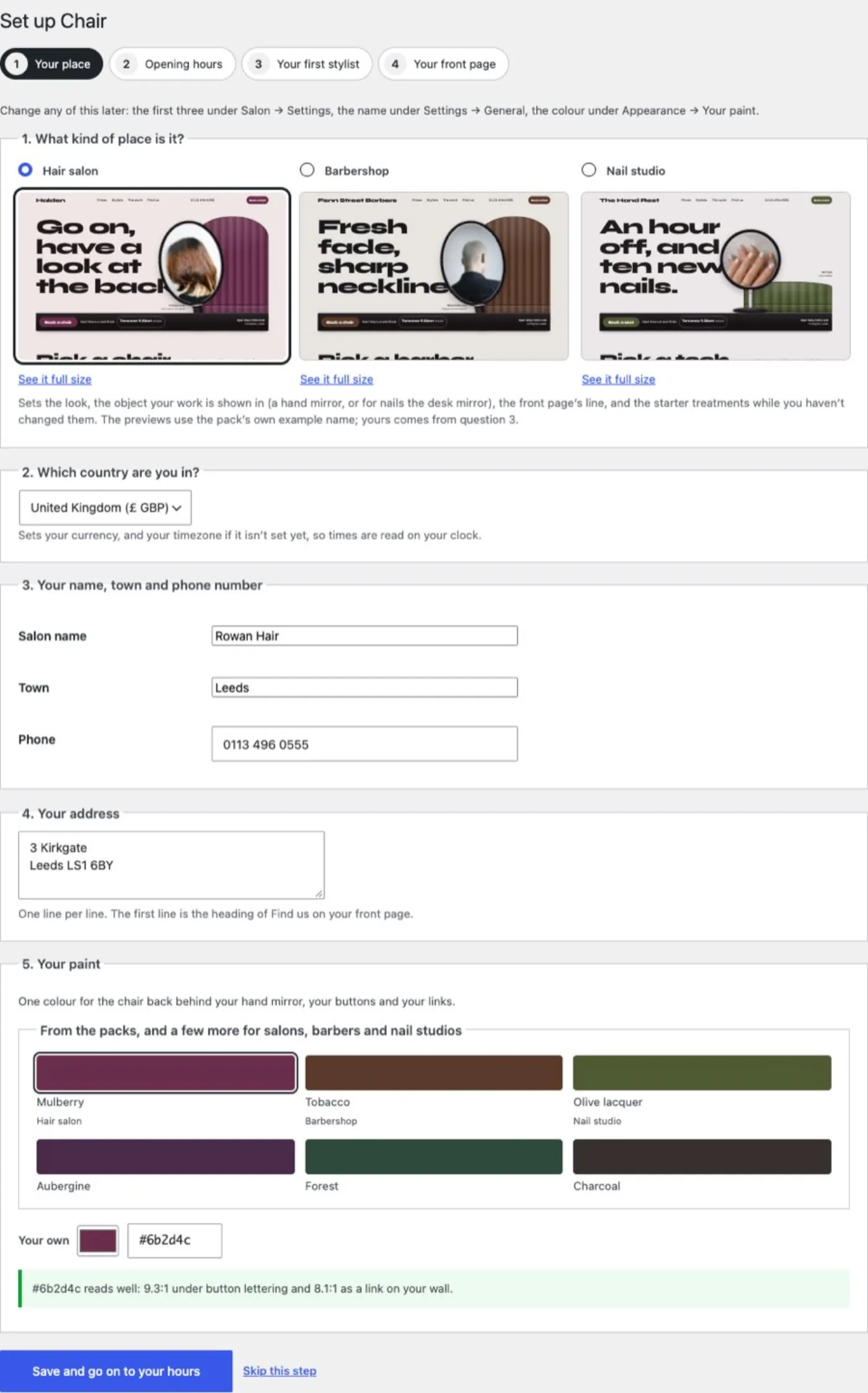
1. Your place. Five questions:
- What kind of place: hair salon, barbershop or nail studio. Each is shown as the front page it makes, with an example name; See it full size opens it in a new tab. This sets the look, the line on your front page, the object your work is shown in (the hand mirror over the chair back; for a barbershop, over a barber chair’s headrest and a roll of neck strips; for a nail studio, the round desk mirror by the hand rest), the words the site uses (a nail studio says Book a seat, Pick a tech and Technicians; a barbershop Barbers), and the starter treatments while you haven’t changed them.
- Starter content for: your country. Six countries (the United Kingdom, Ireland, the United States, Canada, Australia and New Zealand) have starter content written for them: the currency prices are shown in, the spelling of colour, and a time zone if your site has none. It is starter content, not a check of the rules where you work: read it through after setup and change anything that is not right for you.
Anywhere else: choose your own country from the list under Other country: neutral starter content. Your site gets starter content in plain international English that names no licence, regulator or law, and three more questions appear: your currency code and the symbol before prices (both filled in from your country; change them if you price in something else) and your time zone (filled in from your country; if it has more than one, check it, because booking reads every time on this clock). Chair never guesses these. Anything you leave empty is left off your site and shown to you as a gap: without a currency, prices show as plain numbers and search engines are given none. - Your name, town and phone number. The town is what booking means by “Times are Sheffield time”.
- Your address. The first line is the heading of Find us.
- Your paint (“Your paint, your fonts, the look”).
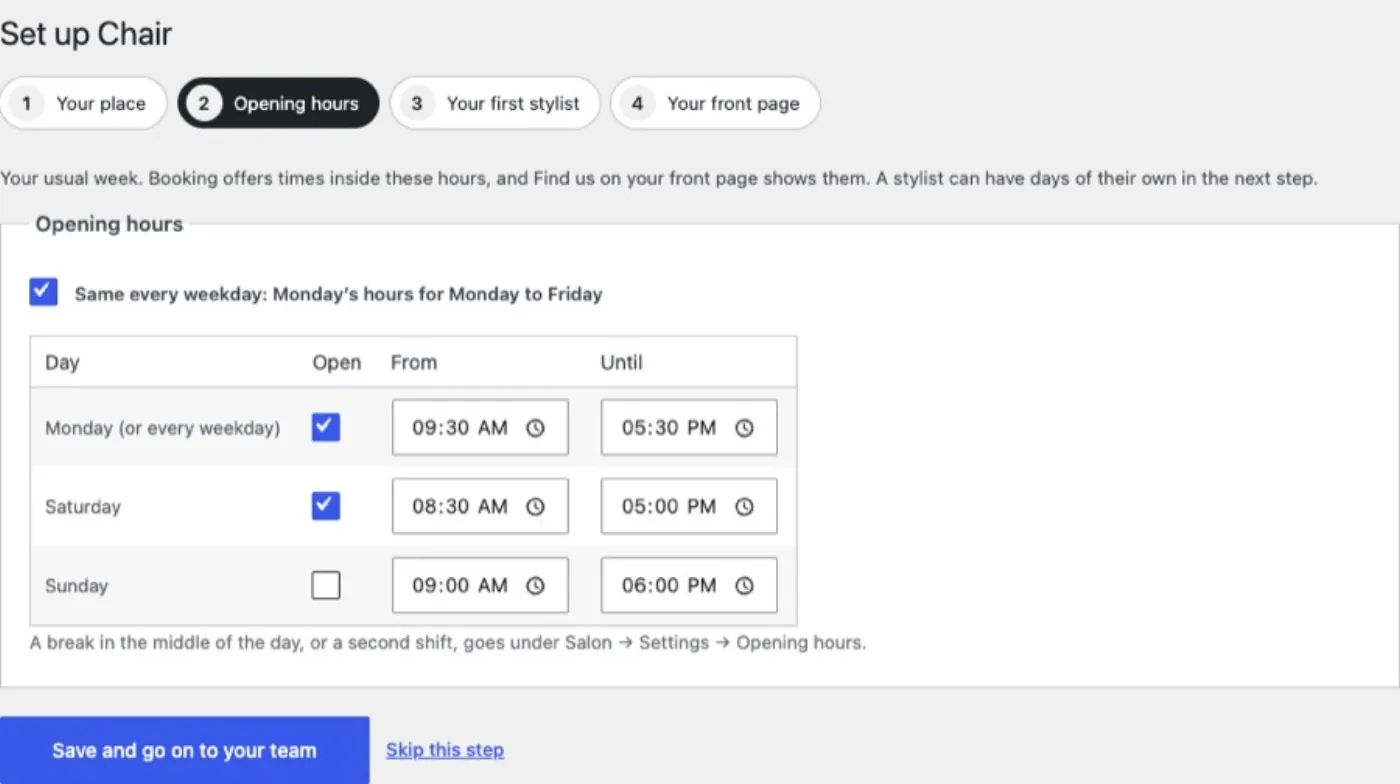
2. Opening hours. One row a day: tick the days you’re open and set the times. Same every weekday uses Monday’s row for Monday to Friday and folds the other four away. A day that already has a break in the middle keeps it; breaks are set under Salon → Settings → Opening hours.
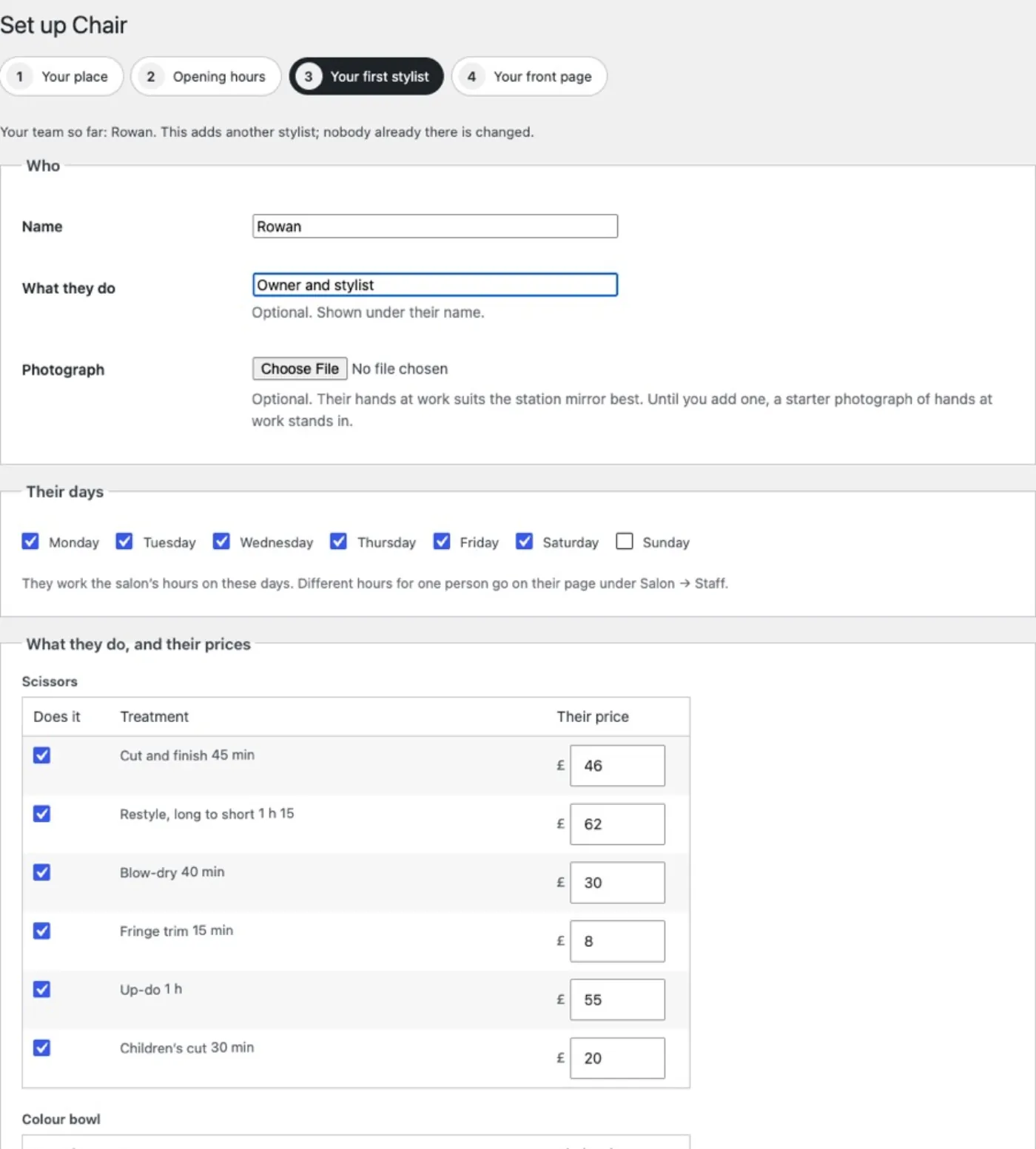
3. Your first stylist. Their name, what they do, a photograph (their hands at work suits the station mirror; until you add one, a starter photograph stands in), the days they work, and a price for each of your treatments. On your own? Add yourself. If the team already has people in it, this adds one more and changes nobody else.
- A price you give becomes the treatment’s price if it has none yet. If it already has one and theirs is different, theirs is kept as their own and the price list shows both.
- Untick a treatment they don’t do. If nobody on the team does it, it comes off your menu and is kept as a draft under Salon → Treatments.
4. How clients pay. Optional: left as it is, clients pay in the salon. The same settings as Salon → Settings → How clients pay, below in “How clients book”.
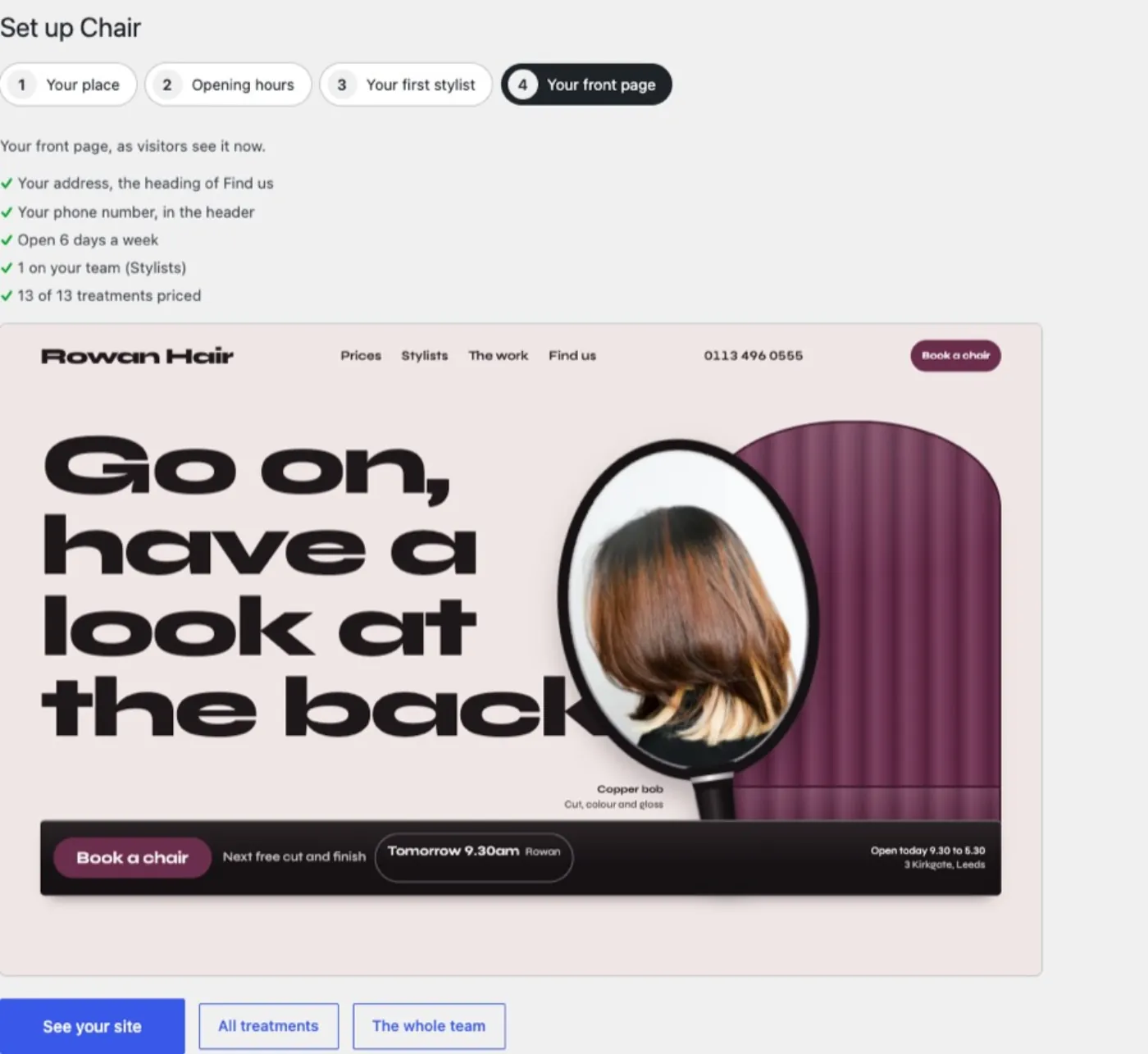
Your front page. The front page as visitors see it now, with what is done and a link to anything that isn’t: your address and phone, your hours, your team, and how many treatments have a price.
Check your starter content
After the setup, your dashboard and Salon → Settings show a box until you press I have checked it. It says which starter content you have, lists anything still missing (for another country: your currency or time zone), and links to each place to change it: your treatments, the patch-test note and wording (Salon → Settings → Country, wording and patch-test advice), your front page, and your prices, hours and cancellation policy. Read your treatments and the patch-test note through: what a patch test is called, and how long before colour it is needed, is your call and your colour maker’s, not the theme’s.
The patch-test note on your front page can be reworded there. Empty the box to put back the starter wording. Changing country puts the starter wording back too, because words for one country are wrong for the next.
Your words
Salon → Settings → Your words. What the site calls the Book button, the heading over your team, your team in the menu, one of them in a sentence (“each stylist’s price”) and where clients sit (“so someone else can have the chair”). They start as your kind of place says them. Change any; empty a box to go back. If you change your kind of place later, every word you left alone changes with it.
Next free times
The front page, the team page and each stylist’s page show the next free time for one treatment, and name it: “Next free cut and finish”. That is the time booking will offer for it. Choose the treatment under Salon → Settings → Next free times are for. Left at Your trade’s usual, it follows your trade: cut and finish for a salon, a skin fade for a barbershop, a gel manicure for a nail studio (if your menu has it; else the first on your menu), and it changes when you change the trade. Someone who doesn’t do it shows their own first treatment, named.
Set a named timezone. This one matters.
Settings → General → Timezone. Choose a city, such as London, not a UTC+0 offset. The setup sets one for you if there is none.
Until there is one, the booking page says online booking is switched off, and the diary warns you. An offset does not know when the clocks change, so every appointment made before the switch would be an hour wrong after it. Rather than take that risk with your diary, Chair waits.
Tell it where you are
Salon → Settings → Where you are.
- Phone: as clients should dial it. It appears in the header, Find us and every confirmation email.
- Address: one line per line. The first line becomes the heading of the Find us section.
- Getting here: the nearest station, parking, whether the entrance is step-free.
- Directions link: optional. Leave it empty and Directions searches a map for your address.
The salon’s name and the line under it are WordPress’s own: Settings → General → Site Title and Tagline.
Set your opening hours
Salon → Settings → Opening hours (or step 2 of the setup). The salon’s usual week. A stylist with hours of their own overrides these (“The team”).
Set where notifications go
Salon → Settings → Send notifications to. Every new booking, move and cancellation is emailed here.