Everything you need to run your site, in the order you need it. The design looks after itself; the questions come from the diary.
Date is a day-to-a-page diary lying open on your desk. A couple asks for their date and the page tears off: if you are free, their day prints in your red, ringed in pencil, with the price.
Read “Getting started: Set up Date” before anything else. Until you set your season and the days you work, the site tells every couple that every date is free.
Updates and support. New versions arrive in WordPress once your licence key is in: see “Licence and updates”, which also says what your licence covers.
This guide is also in your dashboard, under Theme guide, at the bottom of the menu.
On this page
Installing
- Appearance → Themes → Add New → Upload Theme
- Choose
varnify-date-<version>.zip, install, activate
Activating does one thing, once: it creates a Venues page at /venues, a Packages page at /packages and an Enquire page at /enquire, unless your site already has pages at those addresses.
It deliberately adds no packages, no prices, no events, no venues and no reviews. Those are claims about a real business, and a theme that invented them would invite you to leave them up. Every section that shows them stays hidden from visitors until you fill it in. While you are logged in you see a note in its place saying what to add, and where.
Everything the diary runs on lives under one menu item: Dates.
Getting started: Set up Date
Appearance → Set up Date. Six short steps. The first five are each skippable and changeable later; the sixth is your front page, with the diary open:
- Your business. Your name, what you do and where (the small line under your name in the header), your trade (photographer, videographer, venue, caterer, band or DJ, florist, cake maker, planner, celebrant, or something else), your country (see below), your phone and email, and the desk your diary lies on: oak (photographers, florists, cake makers, celebrants), flax linen with claret (venues) or graphite felt (caterers, bands and DJs).
- Your red. See “Changing your content and your look”.
- Your base. Where you are. Today’s leaf prints sunrise and sunset there, as a desk diary does. Type a latitude and longitude, or tick Look up its latitude and longitude for me, which sends what you typed, once, to OpenStreetMap’s search. Leave it empty and sunrise and sunset are left off. Your time zone is asked here too: a new site is on UTC, so your country’s main zone is offered (London, New York, Toronto, Sydney; with Other country, your country’s zone only when it has just one); pick your own city. It is the same setting as Settings → General → Timezone.
- Your season and prices. The months and days you take, when peak dates fall, and what a full day costs off-peak and at peak. Peak dates start at your country’s usual peak (June to September in the UK, October to April in Australia). With Other country there is no usual season to start from, because wedding seasons turn with the hemisphere: set your own. That is enough for the diary to answer honestly on day one.
- How couples pay. In person or on the day, bank transfer, a payment link, or more than one; a deposit or retainer if you take one; and whether a pencilled date waits for it. Skip it and nothing changes. See “How couples pay” in “Enquiries, and holds”.
- Your front page. Your diary is open. Ask it about a date on your front page to see what couples will see, and follow the links to add a wedding you have done, to Date → Settings, and to Appearance → Editor.
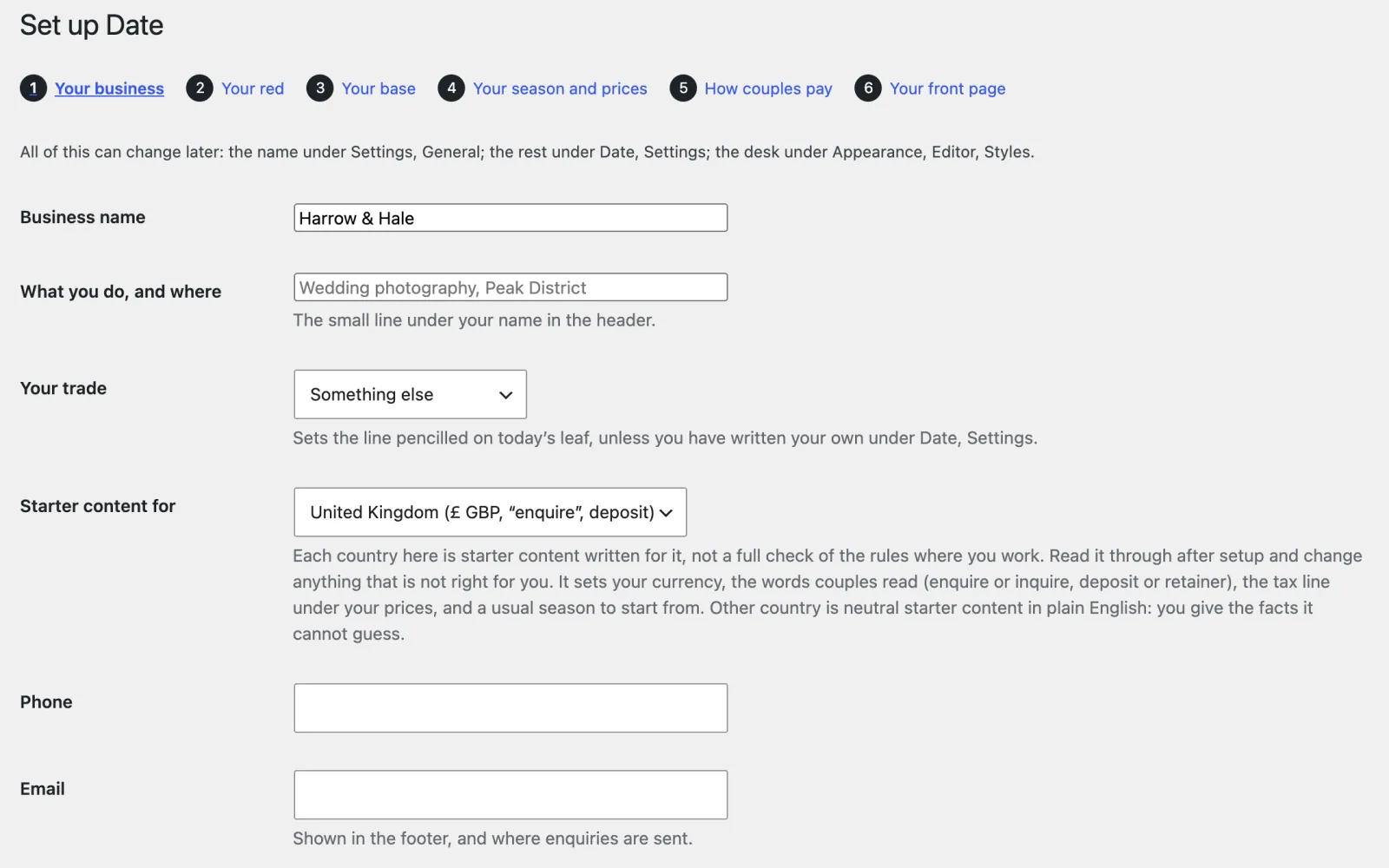
Your country: starter content for it
Starter content for the United Kingdom, the United States, Canada or Australia sets your currency and the words couples read: enquire in the UK and Australia, inquire in the US and Canada; a deposit or a retainer; the line under your prices about tax; a usual season. It is starter content written for that country, not a full check of the rules where you work: read it through after setup and change anything that is not right for you.
Anywhere else: Other country. Neutral starter content in plain English (“enquire”, “deposit”), which names no tax rule, deposit rule or review site. Choose your country from the list (every country there is); your currency and the symbol before your prices are filled in from it, and you can change them. Then write how your prices stand on tax in your own words (“Prices include VAT.”), or leave it empty and nothing is said about tax. The theme never guesses a legal fact: anything you have not given is left off your site and shown to you as a gap to fill, on the dashboard and under Date, Settings. Without a currency, search engines get your packages without prices.
Change it under Dates → Settings → On the site → Starter content for. Nothing else in the theme is tied to one country: dates follow your site’s language, and everything about the law, contracts, cancellations or licences is yours to write in your own words.
Check your starter content
After setup, a notice on the Dashboard (and on Dates → Settings) says your site has starter content to check, with links to your prices and the line under them, the country, your season and your pages. With Other country it also lists anything not set yet. It stays until you press I have checked it.
Adapt my starter content to your country
With an AI service connected to your site (Settings → Connectors), Appearance → Adapt starter content asks it to suggest rewrites for your country of the theme’s own lines (the line on today’s leaf, the answer for a date you are not taking, the fine print under your prices) and your starter pages. Only what nobody has edited is offered, unless you tick “Also suggest changes to lines and pages I have edited”.
Each suggestion is shown beside what is there now, and nothing changes until you tick it and press Apply the ticked suggestions. Anything about money or the law (deposits and retainers, contracts, cancellations and refunds, tax, licences) is marked Check this yourself, with who can confirm it and a link to search for the official source; so is the fine print under your prices. These are never ticked for you and need a second tick, “I have checked it against an official source”. Where the AI did not know a fact it writes [unknown: …]: fill that in before the suggestion can be used. Your prices, packages, dates and enquiries are never sent. If you later change your country, the lines a suggestion wrote for the old one are cleared.
Set your timezone
Settings → General → Timezone (or step 3 of Set up Date). Choose your city, such as London. The diary works out “today” from it: a date that has passed, the start of a hold, the day a hold ends, and the times of sunrise and sunset.
The rest of your season
Dates → Settings → Your season.
- Season: the months you take bookings, e.g. March to October. Couples who pick a date outside it see your out-of-season message.
- Days you work: e.g. Friday, Saturday and Sunday. Other days are never offered: a couple asking about a Tuesday is told “We don’t book Tuesdays”, and shown your nearest free days.
- Events per weekend: e.g. 2. When a Friday-to-Sunday weekend has that many bookings and holds, its other days show as not free. Leave it at 0 for no limit.
- Take bookings up to: the last month you book. Later dates are told “Our 2029 diary isn’t open yet”, with a way to enquire anyway.
- Blackout dates: a family wedding, a holiday. To couples a blackout is simply not free, like any taken day; the reason you type stays private.
- Out-of-season message: in your own words. The first line is the answer couples see; anything after it is the explanation.
Set where enquiries go
Dates → Settings → Notifications and contact. Every enquiry is emailed to Send enquiries to, and to Also send to if you fill that in. The Phone and Email there appear in the footer and on the sent page.
Licence and updates
New versions of Date come from varnify.com, not WordPress.org.
- Find the licence key in your email from Varnify.
- Go to Appearance → Licence and updates, paste the key and press Save.
- A new version then shows on Dashboard → Updates and on the Themes screen like any other update, and you install it with one click. Check for updates now on the same screen asks straight away instead of waiting.
To have new versions installed for you, open Appearance → Themes, click Date and choose Enable auto-updates. WordPress then installs each new version by itself.
To check, Date sends your site’s address and your key to varnify.com, at most twice a day. Nothing else is sent.
If the shop cannot accept a key, the Themes and Updates screens say why in a sentence: it does not know the key (check it against your email from Varnify), the key is for a different Varnify theme, or the key was cancelled.
What your licence covers.
- Updates for as long as the theme is maintained.
- Personal support by email ([email protected]) for 12 months from purchase.
- Bugs you report are fixed free for as long as the theme is maintained.
- The theme is GPL, so you may use it on as many sites as you like. A licence covers updates for one site. Your live site plus its staging and local copies count as one site.
- If a theme is ever retired, buyers hear first, and its last version stays yours to download and use.