Everything you need to run this theme, in the order you need it.
Counter sets your site as your own letter board, hung on a tile wall. The board is the live menu and the open sign: it shows the menu you are serving now, says “Back at 6” between lunch and dinner, “Back on Sunday” over a holiday, and turns to the dinner board in the evening. It writes itself from two things you fill in once: your hours and your menus. Set those, and the board looks after itself.
Counter needs WordPress 6.6 or newer and PHP 8.0 or newer. Upload the zip under Appearance → Themes → Add New → Upload Theme (the installing a theme zip page has the steps) and activate it. Activating adds a lunch and a dinner menu, a journal entry, a notice and four pages, so the site looks like something from the first minute.
Start here: Set up Counter
Appearance → Set up Counter. A note on the Dashboard points to it until you finish it or choose “I will set it up myself”. Five short steps, each saved as you go; skip any of them and come back. Every answer goes into the ordinary settings, so everything here can be changed later in Restaurant → Settings and Appearance → Your board. Run it again whenever you like: each step shows what is set now and changes only what you change, and it never removes a menu you have written.
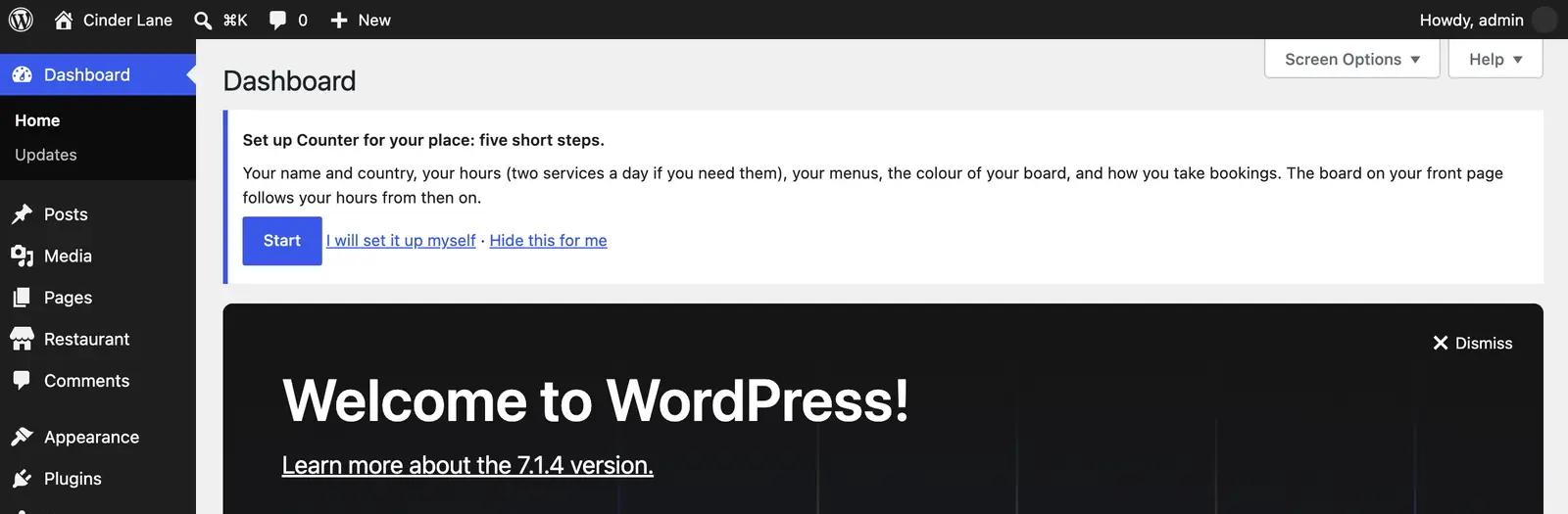
- The place. The name over the door, what kind of place it is (a café, a bistro or restaurant, a pub with a kitchen, a bakery), your country, your time zone, phone, email and address. The time zone matters most: the board says “Open now” by this clock.
Starter content for your country. The United Kingdom, Ireland, the United States, Canada, Australia and New Zealand each have starter content written for them: the time zone to start from, the currency search engines read your prices in, and the allergy line on the example menus (in the UK and Ireland, the 14 allergens; in the US, the raw-or-undercooked advisory). It is starter content, not a full check of the rules where you work: read it through after setup and change anything that is not right for you.
Anywhere else: Other country. Neutral starter content in plain English, which names no food law, allergen list, hygiene rating or licence. Choose your country from the list (every country there is); your currency is filled in from it, and you can change it. Then say which allergens your rules name, as your food law or food safety body names them (“the 14 allergens”). Your menus then say “Please tell us about allergies when you order. We can tell you which of the 14 allergens are in every dish.” The theme never guesses a safety fact: until you give the list, the menus only ask guests to tell you about allergies, and the admin shows it as a gap to fill. Without a currency, search engines get your dishes without prices.
Changing the country later (here or in Restaurant → Settings, under Country, allergy line and currency) rewrites the allergy line only on menus where it is still the theme’s own, never your own words.
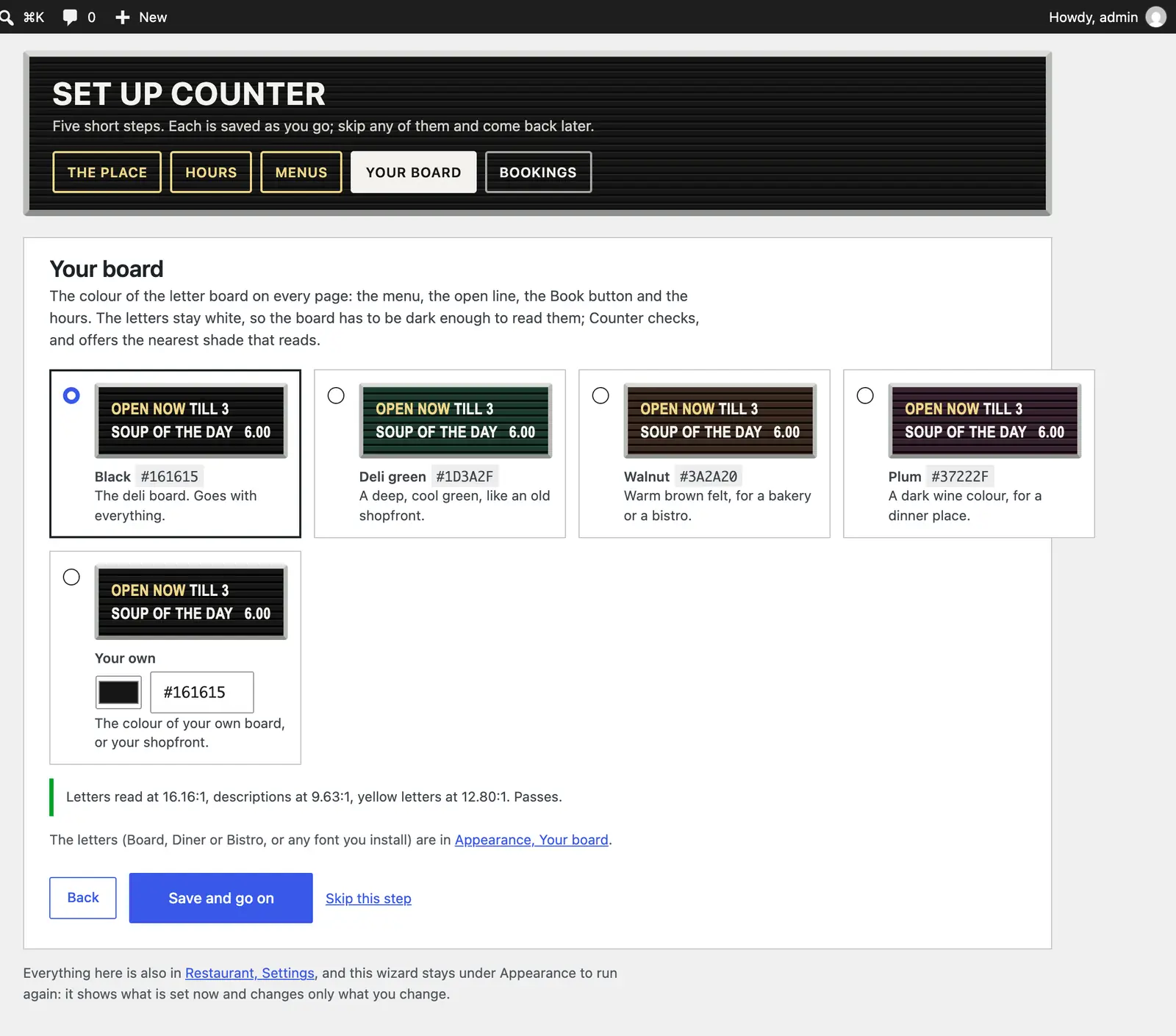
The kind of place also suggests the wall the board hangs on: the Dining room’s dark painted matchboard for a pub or a bistro, Green tile for a bakery, white tile for a café. Pick another if it suits you better; it can be changed any time (“Your board, your letters, your wall”).
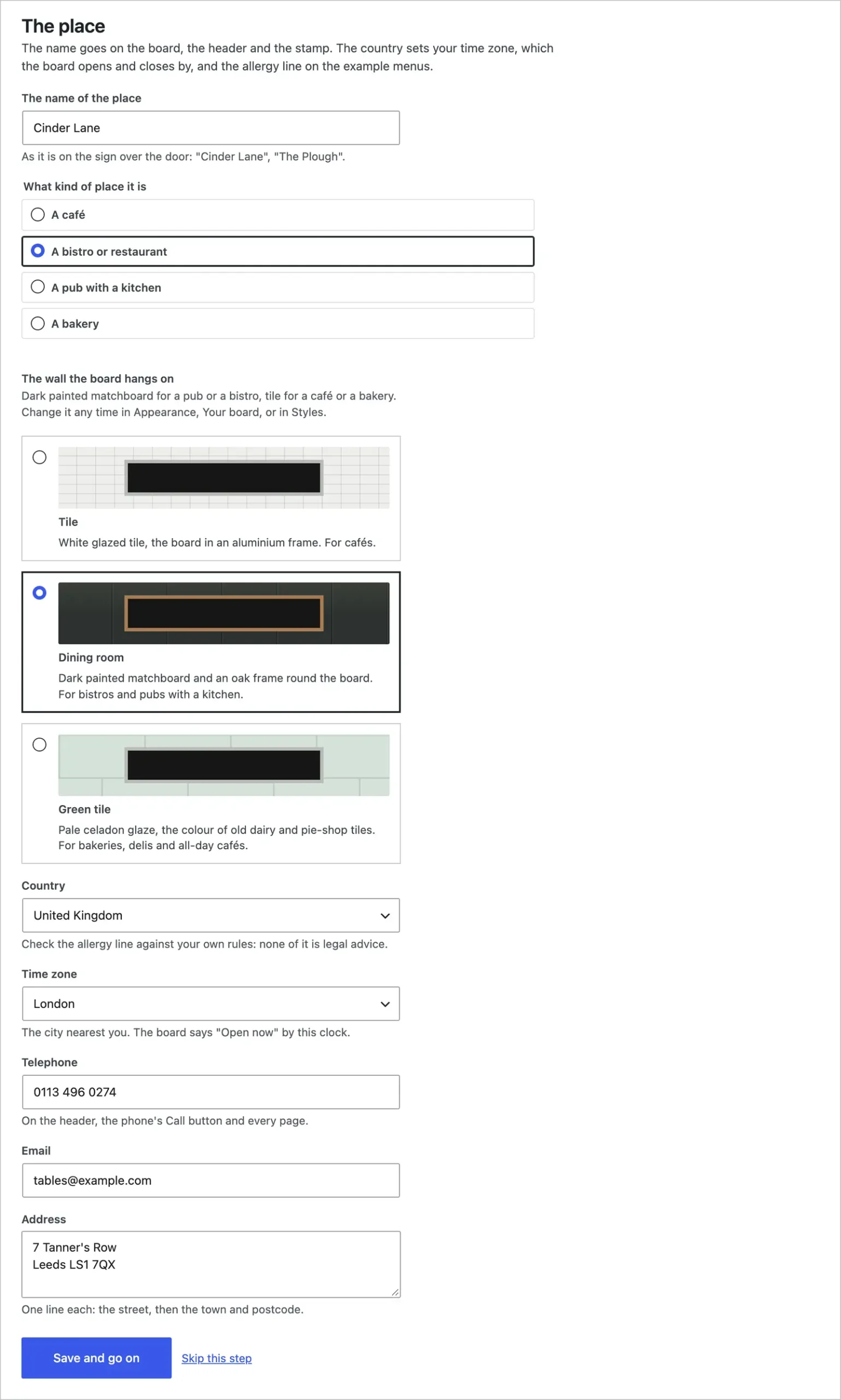
- Hours. Two services a day, so a café that shuts at 3 and opens again for dinner at 6 is one day with two rows. Call a service “Dinner” and the evening board turns on for it. Christmas and other dated changes are in Restaurant → Settings, under Exceptions (“Set your opening hours before anything else”).
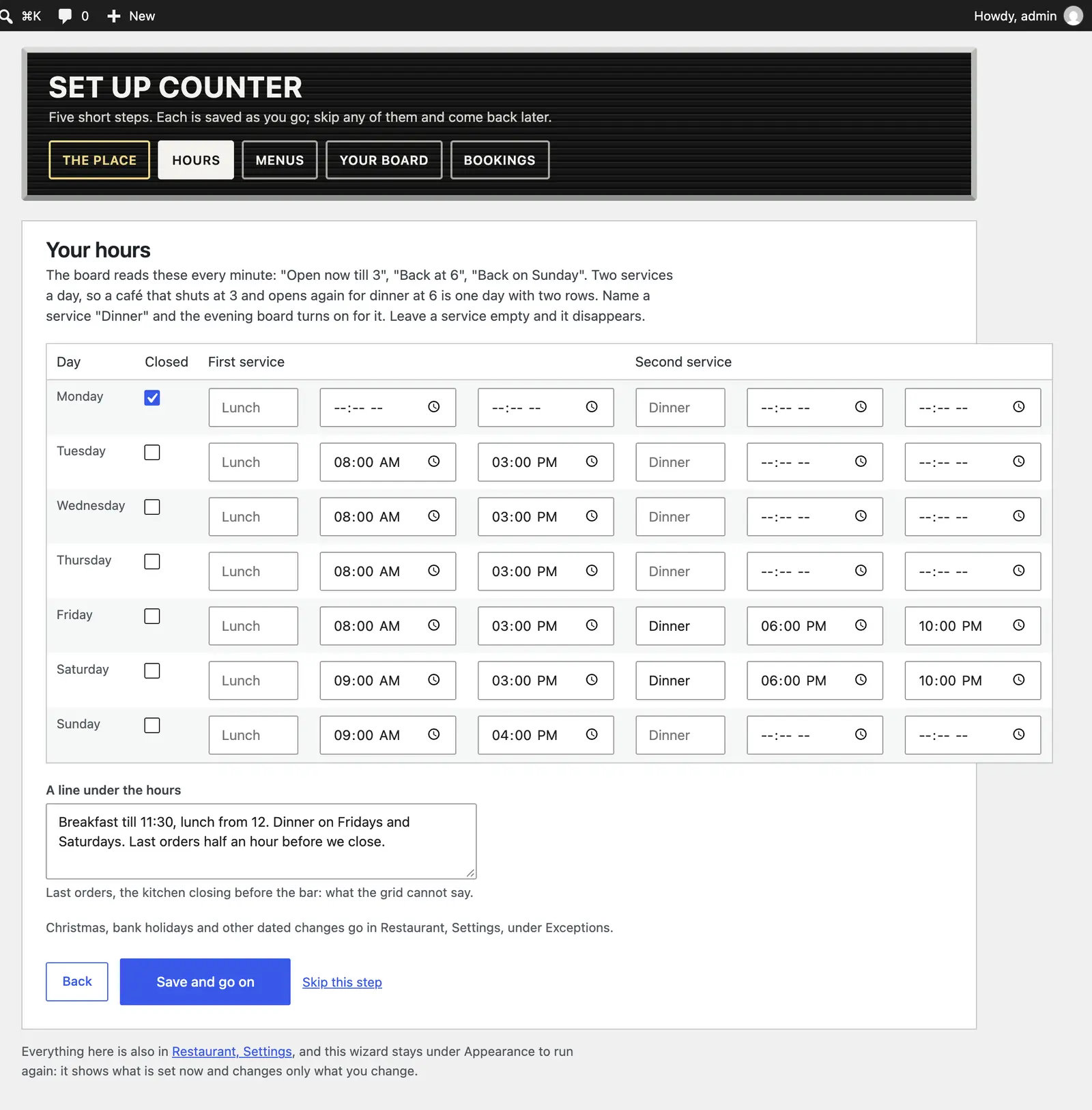
- Menus. Keep the example lunch and dinner to see the board working and change them dish by dish, or start from a blank card: the examples nobody has changed go to the bin (Restaurant → Menus → Bin, to get them back), and anything you have written stays.
- Your board. The board’s one colour, with the check that keeps the letters readable (“Your board, your letters, your wall”).
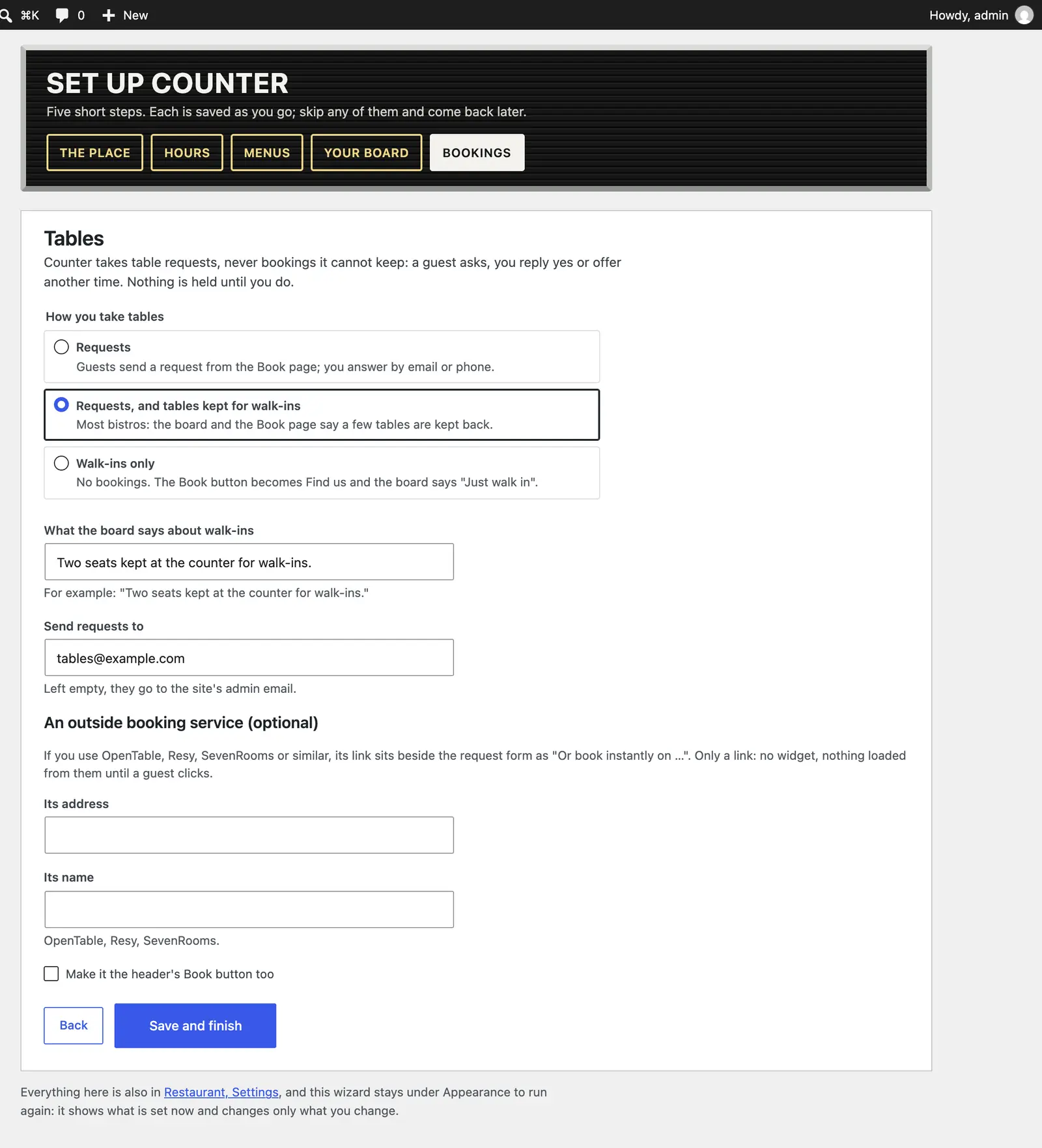
- Bookings. Requests; requests with tables kept for walk-ins; or walk-ins only. The line the board says about walk-ins, where requests are sent, and an outside booking service if you use one (“Decide how you take bookings”).
Check your starter content
After setup, a notice on the Dashboard (and on Restaurant → Settings) says your site has starter content to check, with links to your menus and their allergy lines, the country and allergen facts, the journal and your pages. With Other country it also lists anything not set yet, which is left off your site until you add it. It stays until you press I have checked it. Read every menu’s footnote in particular: the allergy line, a service charge, anything about tax or licensing printed at the foot of the card is yours to get right.
Adapt my starter content to your country
With an AI service connected to your site (Settings → Connectors), Appearance → Adapt starter content asks it to suggest rewrites of the example menus and the starter journal entries for your country: the words guests there use on a menu (desserts or puddings, fries or chips), the spelling, places and produce they know. Only starter content nobody has edited is offered, unless you tick “Also suggest changes to menus and entries I have edited or added”.
Each suggestion is shown beside what is there now, and nothing changes until you tick it and press Apply the ticked suggestions. Anything about allergens, food safety, alcohol, hygiene ratings, licences, service charges, tips, tax or the law is marked Check this yourself, with who can confirm it and a link to search for the official source. So is each menu’s list of dishes, because what a dish is said to be made of is what its allergens are checked against. These are never ticked for you, and need a second tick, “I have checked it against an official source”. Where the AI did not know a fact it writes [unknown: …]: fill that in before the suggestion can be used. Your prices, dietary ticks and Contains lines are never sent and never changed.
Sent to your AI service: the starter text, the kind of place, your town and country, and the facts you gave in setup. No reservations and nothing about your guests.
Licence and updates
New versions of Counter come from varnify.com, not WordPress.org.
- Find the licence key in your email from Varnify.
- Go to Appearance → Licence and updates, paste the key and press Save.
- A new version then shows on Dashboard → Updates and on the Themes screen like any other update, and you install it with one click. Check for updates now on the same screen asks straight away instead of waiting.
To have new versions installed for you, open Appearance → Themes, click Counter and choose Enable auto-updates. WordPress then installs each new version by itself.
To check, Counter sends your site’s address and your key to varnify.com, at most twice a day. Nothing else is sent.
If the shop cannot accept a key, the Themes and Updates screens say why in a sentence: it does not know the key (check it against your email from Varnify), the key is for a different Varnify theme, or the key was cancelled.
What your licence covers.
- Updates for as long as the theme is maintained.
- Personal support by email ([email protected]) for 12 months from purchase.
- Bugs you report are fixed free for as long as the theme is maintained.
- The theme is GPL, so you may use it on as many sites as you like. A licence covers updates for one site. Your live site plus its staging and local copies count as one site.
- If a theme is ever retired, buyers hear first, and its last version stays yours to download and use.