Everything here is about the parts of Callout that do something. The design looks after itself; the phone and the enquiry form are where the questions come from.
Read “Getting started” before anything else. Until you do it, the most valuable thing in the theme is switched off.
Installing
- Appearance → Themes → Add New → Upload Theme
- Choose
varnify-callout-<version>.zip, install, activate
Activating builds you a small site, once, and only on a site that has not already made these decisions for itself:
- Request a quote, Areas we cover, Reviews and About us pages
- six starter Services, grouped so the services archive has a working filter from the first minute
- photographs on every starter service, and two example finished jobs under Work, so the front page looks finished on day one. They are marked as examples: replace them with your own jobs, or delete them
- default opening hours: weekdays 08:00–17:30, Saturday morning, Sunday closed
It never changes your reading settings. Your front page is the theme’s Front Page template, so there is no “Home” page to set up.
The starter content is for a plumbing and heating business in the United Kingdom. If you work in the US, Canada, Australia or New Zealand, or you are an electrician or a locksmith, the setup in “Getting started” swaps it for yours, in your country’s words. Anywhere else, choose Other country for neutral starter content you fill in with your own facts.
Whichever you choose, it is starter content: a starting point written for that country, not a check of the rules, the safety advice or the words where you work. Read it through and change what is not right for you.
Services and Work get their own archives at /services/ and /our-work/. Nothing needs configuring for those to exist.
There is no plugin to install and nothing to buy afterwards.
Licence and updates
New versions of Callout come from varnify.com, not WordPress.org.
- Find the licence key in your email from Varnify.
- Go to Appearance → Licence and updates, paste the key and press Save.
- A new version then shows on Dashboard → Updates and on the Themes screen like any other update, and you install it with one click. Check for updates now on the same screen asks straight away instead of waiting.
To have new versions installed for you, open Appearance → Themes, click Callout and choose Enable auto-updates. WordPress then installs each new version by itself.
To check, Callout sends your site’s address and your key to varnify.com, at most twice a day. Nothing else is sent.
If the shop cannot accept a key, the Themes and Updates screens say why in a sentence: it does not know the key (check it against your email from Varnify), the key is for a different Varnify theme, or the key was cancelled.
What your licence covers. Updates for as long as the theme is maintained. Personal support by email ([email protected]) for 12 months from purchase. Bugs you report are fixed free for as long as the theme is maintained. The theme is GPL, so you may use it on as many sites as you like; a licence covers updates for one site. “What support covers” has the details.
Getting started
Run the setup
After activating, the dashboard offers Set up Callout (it is also under Appearance → Set up Callout). Six questions:
- Where you work, and your trade: starter content for the United Kingdom, the United States, Canada, Australia or New Zealand, or Other country; plumbing and heating, electrical, or locksmith
- Your business name and town
- Your phone number, WhatsApp if you use it, and when you answer: working hours, or 24/7 for emergencies
- The towns you cover, one per line (
Headingley, LS6, orLincoln Park, 60614) - Your registration or licence, with your number: the wizard suggests the one for your trade in your country (Gas Safe; NICEIC or NAPIT; a state license; TSSA or ESA in Ontario; your state licence in Australia; the PGDB or EWRB in New Zealand)
- Your colour: the band across your labels and your call button
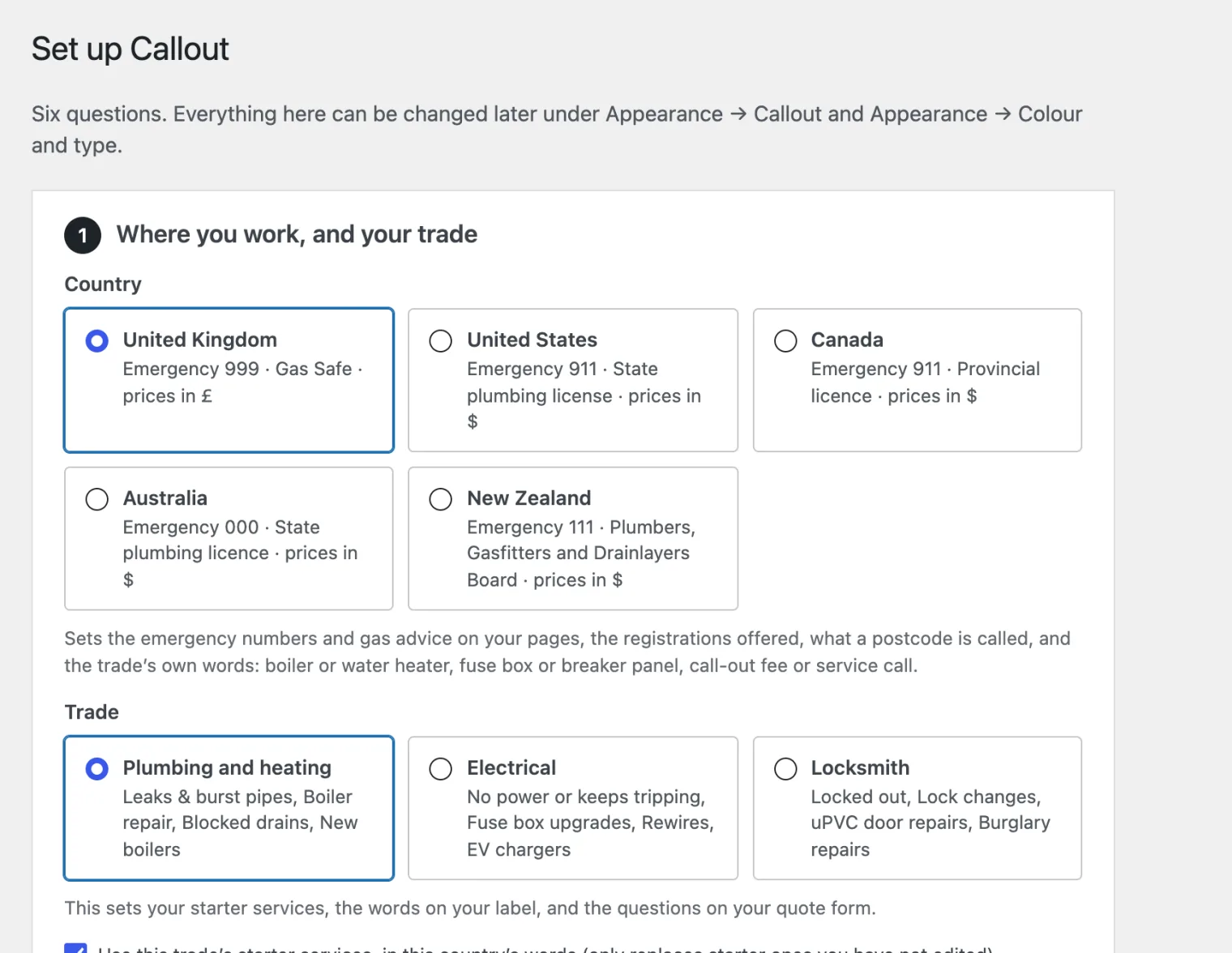
Your answers go into the same settings described below, so you can change any of them later under Appearance → Callout. Choosing a trade also sets:
- the line under your name and the words at the top of the front page (“Electrician in Bristol”, “No power, fuse box tripping or a sparking socket?”) and in the closing band
- six starter services for that trade, each with a photograph and practical advice for the customer, with questions for you to answer at the bottom
- the jobs offered on the quote form (a locksmith’s form does not ask about boilers)
- the business type search engines are told about
Choosing a country sets:
- the emergency number and the gas advice on heating pages (“Smell gas? Ring 0800 111 999” in the UK; “leave, then call 911 or the gas company” in the US and Canada; your distributor’s faults line and 000 in Australia; 111 in New Zealand), and the police and power-cut numbers in the advice
- the trade’s own words: boiler, water heater, furnace or hot water cylinder; fuse box, breaker panel or switchboard; call-out fee or service call; postcode, ZIP code or postal code; uPVC doors in the UK, rekeying in the US
- which registrations are suggested, and how their numbers are written (“Gas Safe reg. 000000”, “Electrical contractor license #000000”)
- the currency in the examples, the country code on your WhatsApp link, and the country search engines are told about
Anywhere else: Other country
Ireland, Germany, India, South Africa and every other country without its own starter content choose Other country. You get neutral starter content in plain international English: main water valve rather than stopcock or toby, fuse board, call-out fee, postal code. It names no regulator, no register and no emergency number, because the theme cannot know yours. The setup then asks for what it cannot guess:
- your country, from a list of every country
- your currency, filled in from your country (change it if you price in another)
- the emergency number to show (fire, police, ambulance), written the way people dial it there; two numbers are fine (“112 or 999”)
- your gas emergency line, if there is one
- what a postcode is called where you are (Eircode, PIN code, PLZ)
- and, under your registration, where customers can check it, if the register has a search page
Nothing is guessed. Leave the emergency number or the gas line empty and the safety advice leaves that part out: the gas advice on heating pages says to get everyone outside and nothing about who to ring. Your dashboard lists what is still missing as Not set, and so does Appearance → Callout, until you add it. Put your WhatsApp number in with + and your country code, so the link opens the right chat.
Check your starter content
After setup your dashboard says what you chose is starter content, with links to the places to change it: your services, Appearance → Callout → Country, wording and safety lines, the front page, and your prices and facts. For Other country it also lists the facts still missing. Click I have checked it once you have read it through. (A site updated from an earlier Callout keeps its country and content as they were and does not show this, unless you run the setup again.)
Appearance → Callout → Country, wording and safety lines is where the country’s words live after setup: your country, the facts above, what a postcode and a call-out charge are called, the gas advice, the front page headline and the closing band. Change any of them to your own words; empty a box to put the starter wording back.
With an AI service connected, Adapt my starter content can suggest the changes for you: see “AI: help with the writing, and running the site from an assistant”.
A registration or company number of all zeros is shown with an example tag on every page, so a stand-in can never pass for the real thing. Put your own number in and the tag goes.
Only starter content you have not edited is swapped. Running the setup again on a site you have worked on keeps your work; replaced starter pages go to the bin.
The rest of this section is the same settings, one at a time.
Add your phone number
Appearance → Callout → Phone. Everything about your business lives on this one screen.
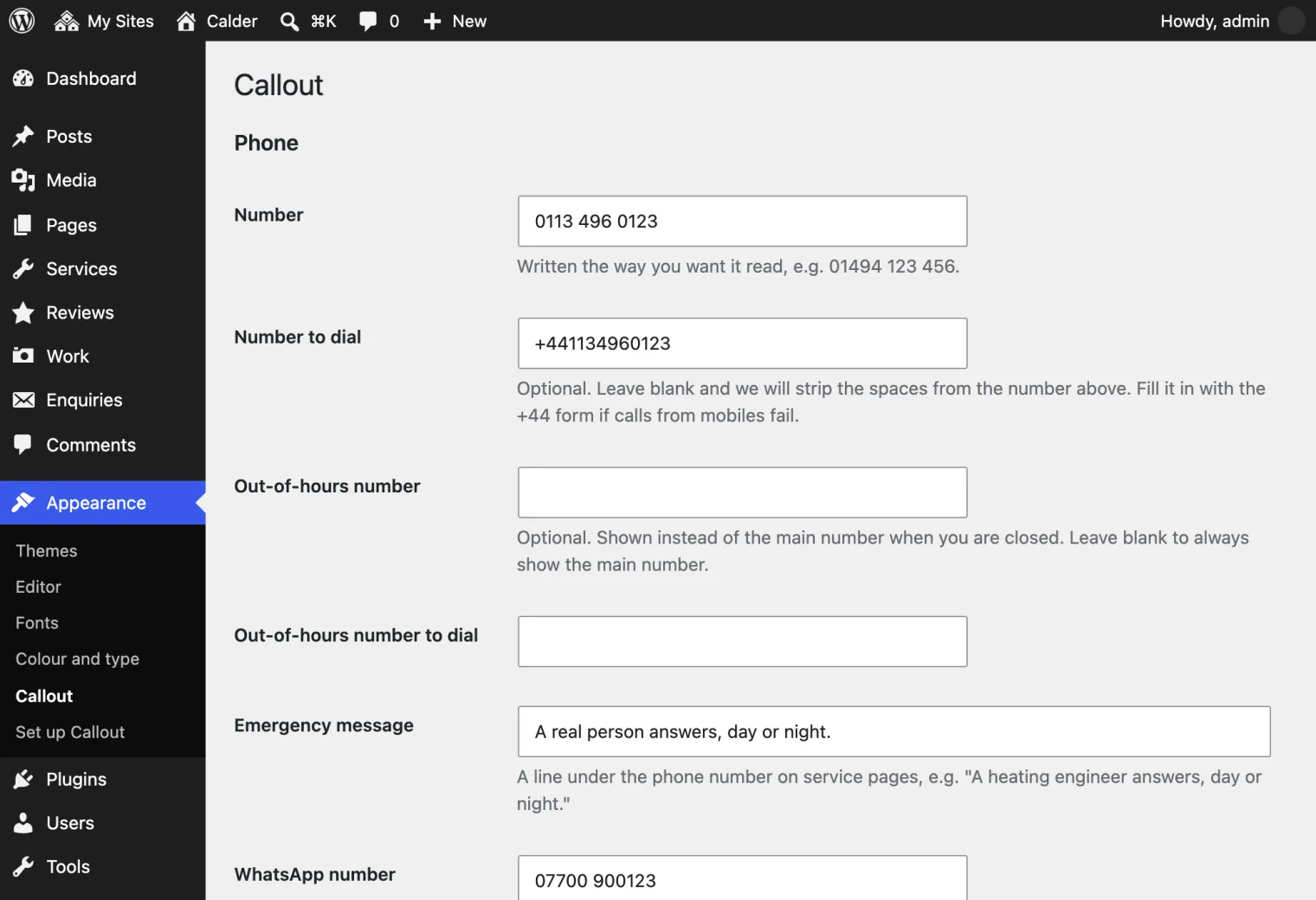
Until you do, the sticky call bar, the big call button and the header number do not appear at all, and between them they are most of what this theme is for. That is deliberate: a call button with no number is worse than none.
Two fields, and the second one matters more than it looks:
- Number: written the way you want it read,
0113 496 0114 - Number to dial: optional. Leave blank and we strip the spaces. Fill it in with the international form (
+441134960114) if calls from mobiles fail, which happens on some networks with certain area codes.
Add your WhatsApp number
Appearance → Callout → Phone → WhatsApp number. Optional, and worth it. Customers would rather send a photo of the leak than describe it. With a number set, the call bar becomes Call + WhatsApp, the header gets a WhatsApp button, and every “send us a photo” link opens a chat with you. Without one, those links go to the quote form instead. A UK mobile written the normal way (07700 900123) is fine.
Set your opening hours
Appearance → Callout → Opening hours.
These drive more than a list in the footer. They decide whether the call bar says Open now or Closed now, what the strip across the top of the header says, and, if you have set one, whether the out-of-hours number takes over.
Times are read in your site timezone (Settings → General), never the server’s. A plumber in Yorkshire on an American host is the normal case, not the exception, and getting this wrong makes the call bar lie about whether anyone will answer.
Set opening and closing to the same time for a 24-hour day.
Set where enquiries go
Appearance → Callout → Enquiries → Send enquiries to. Defaults to the site admin address.