Write the menu
Restaurant → Menus → Dinner (a sample menu is created when you activate the theme). Everything you edit day to day lives under Restaurant in the sidebar: Menus, Add menu, Journal, Reservations and Settings. Nothing to do with food is anywhere else, in particular, Appearance → Menus is WordPress’s navigation, not yours.
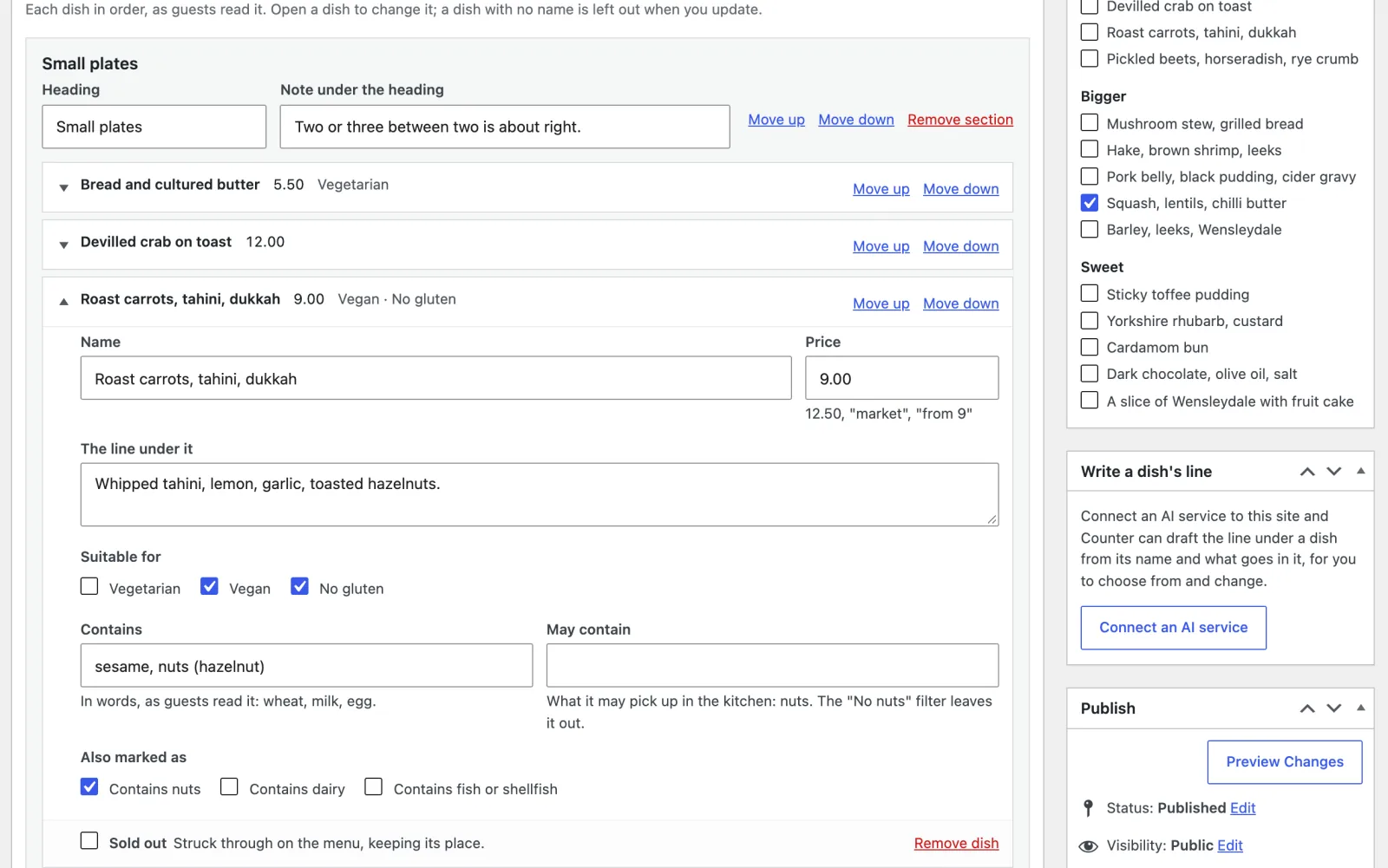
The menu has two tabs, Dishes and As text. They are two ways of editing the same menu, so use whichever suits you and change tabs whenever you like.
Dishes: one dish at a time
Dishes shows the menu in order, section by section, the way guests read it. Each dish is one row with its name, price and dietary words. Press a row to open it:
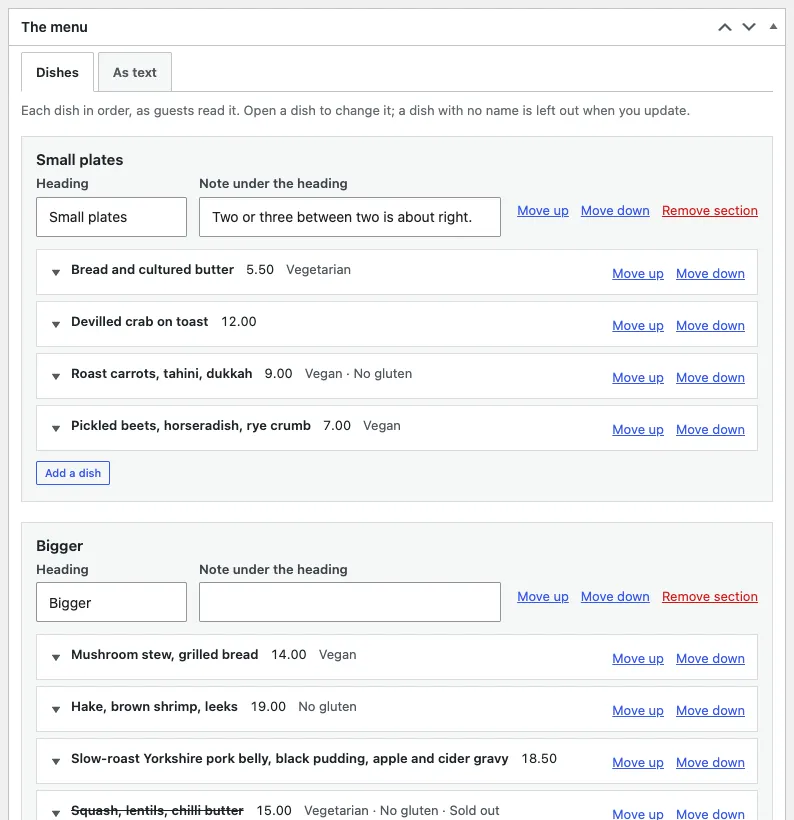
- Name and Price. A price can be anything a menu says:
12.50,market,from 9. - The line under it. The few words that say what is in it and how it is cooked.
- Suitable for: Vegetarian, Vegan, No gluten. Ticked, they are written in yellow letters after the name on the board.
- Contains and May contain, in words, as guests read them: “wheat, milk, egg” and “nuts”. They print under the dish on the board and the paper menu, and the “No nuts”, “No dairy” and “No gluten” filters read both.
- Also marked as: the older allergen marks (nuts, dairy, fish or shellfish), written out when a dish has no Contains line.
Six ticks ship with Counter: three dietary (Vegetarian, Vegan, No gluten) and three allergen marks (nuts, dairy, fish or shellfish). They are only a shortcut. Contains and May contain take any allergen in words, so celery, mustard, sesame, sulphites or all fourteen of the UK’s list can be written on a dish, and the menu and the printed card show them. Add more ticks, or more filters, with the developer filters at the end of this guide.
- Sold out. The dish stays on the menu, struck through, in its place.
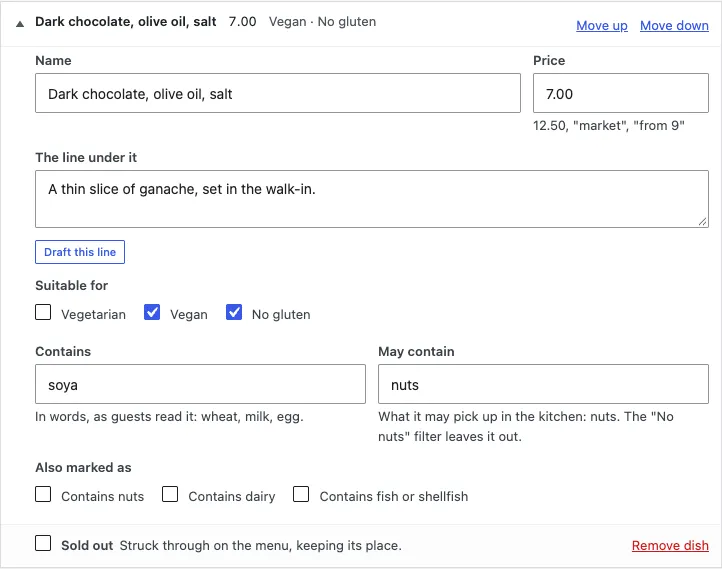
Move up and Move down change the order; a dish moved past the top or the bottom of its section goes into the next one. Add a dish puts a new one at the end of a section, open and ready to type; Add a section puts a new heading at the end of the menu. Remove dish and Remove section take them off. Nothing changes on the site until you press Update, so a mistake is undone by leaving the page without updating.
As text: the menu written out
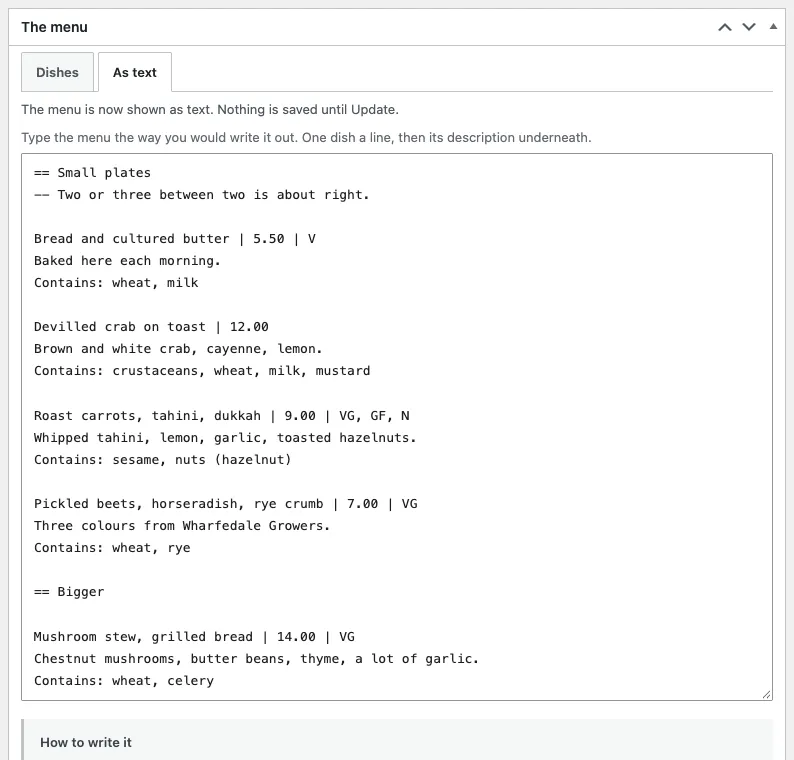
As text is the whole menu as one piece of writing, for anyone who would rather type a card out than fill in boxes, and for pasting a menu in from somewhere else. You write it the way you would write a menu out by hand:
== Small plates
-- Two or three between two is about right.

Bread, cultured butter | 5.50 | V
Baked here each morning. The butter is churned from Jersey cream.

Devilled crab on toast | 12.00 | D
Cornish white crab, cayenne, a lot of lemon.

Potted shrimp | 10.50 | D, out
Morecambe Bay brown shrimp under mace butter, with rye.

== Mains

Hake, brown shrimp, sea greens | 24.00 | GF, D, F
Line-caught, cooked on the bone.
The whole syntax:
| You type | It means |
|---|---|
== Small plates | Start a new section |
-- Two or three… | A note under that section’s heading |
Name | price | tags | A dish |
| Any other line | The description of the dish above it |
Contains: wheat, milk | What the dish contains, in words |
May contain: nuts | What it may have picked up in the kitchen |
out among the tags | That dish has sold out |
Tags: V vegetarian, VG vegan, GF no gluten-containing ingredients, N contains nuts, D contains dairy, F contains fish or shellfish. Separate them with commas. On the board they are written out in full, in yellow letters after the name: Vegetarian, Vegan, No gluten.
Contains: a line starting Contains: under a dish says what is in it, and the board prints it under the dish (“Contains: wheat, milk, egg.”), as does the printed menu. Without one, the N, D and F tags are written out instead. Every dish saying what it contains is what lets a guest with an allergy read your menu without asking about each line.
Prices can be anything a menu says: 12, 12.50, market, from 9. Only a plain number is published as a machine-readable price, because publishing a guess about “market price” would put a number in a search result that you never agreed to.
May contain: a line starting May contain: says what a dish may have picked up in the kitchen (“May contain: nuts”). It prints as “May contain nuts.” after the Contains line, and the “No nuts”, “No dairy” and “No gluten” filters leave the dish out, as they do a dish whose Contains line names it.
Blank lines are ignored. Anything the parser does not recognise becomes a description rather than disappearing, because the one failure a kitchen must never hit is “I typed my menu in and it vanished.”
Changing tab takes the menu with it: what you typed in As text is there, dish by dish, in Dishes, and the other way round. The screen opens on the tab you used last.
The line under a dish, drafted for you
If your site has an AI service connected (Settings → Connectors; any service WordPress supports), the menu screen has a Write a dish’s line box beside the menu. Open a dish and press Draft this line under its line: the box takes the dish’s name and waits for a few words on what goes in it (the main things, how it is cooked, where they come from). Or type the dish’s name in the box yourself; it offers the dishes already on the menu. Press Write three lines, choose the one you like, and Use this line puts it in as the dish’s line (in the menu text, under the dish, if you are on As text), in place of the line that was there. Nothing changes on the site until you press Update, so read it first and change what is not right.
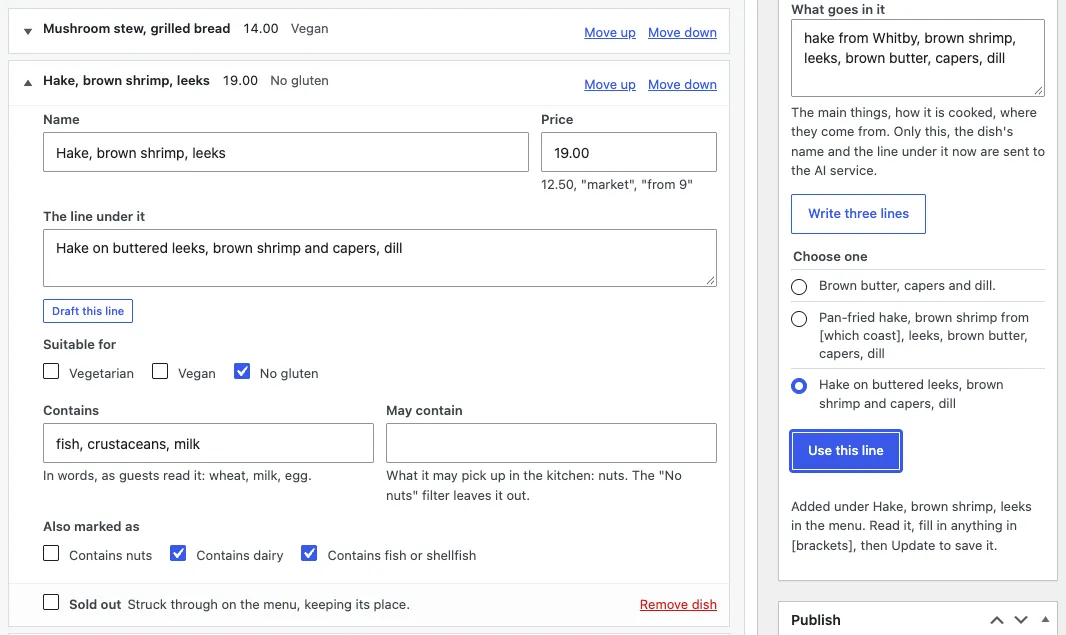
The lines are written the way a kitchen writes: a few plain words, no “mouth-watering”, no exclamation marks, never a claim that a dish is free of anything. Nothing is made up: where a line would want a fact you did not give (whose bread, which farm), it says so in square brackets, like [which coast], for you to fill in or take out. Only the dish’s name, what you wrote and the line already under it are sent to the AI service; nothing about your guests ever is. The theme holds no keys of its own and calls no AI company itself.
Without a service connected, administrators see a button to connect one in the same place, and nobody else sees anything.
More than one menu
Add as many as you like, Lunch, Dinner, Wine, Sunday. Order them with the Order field under Post Attributes, down the right-hand side; the first one is the one the front page shows.
Give each one a Served line (“Tuesday to Sunday, 12 till 3”) and a Footnote for allergy wording or a service charge (it prints at the foot of the paper menu).
Two settings beside them tell the board what to do with the menu:
- Kind of menu. Served at set times (breakfast, lunch, all day) is the usual. Dinner turns the board to the evening while it is served. Today is your specials: a few lines shown on the front board beside the menu (soup of the day, today’s buns). Drinks is on the menu page but never leads the board.
- On the board between two times. Breakfast from 8 till 11:30 and lunch from 12 in the same shift: give each its times and the board changes over by itself. Leave them empty and the board goes by the name of the service in your hours: a shift called “Lunch” serves the menu called “Lunch”.
/menu/ always works. With one menu it takes people straight to it, an index of one is a click between a hungry person and the only thing they came for. Add a second and the same address becomes a list of them, each with its Served line and how many dishes are on it. You do not have to do anything for that to happen.
Selling out on a Saturday
The “Sold out today” box, in the sidebar of the menu editor. Tick the dish, press Update. Thirty seconds. (The Sold out tick on the dish itself is the same thing; ticking either ticks both.)
The dish stays on the menu, struck through, with a “Sold out” mark where the price was. It is left off the printed menu (see “Printing the menu”). Do not delete it, you will want it back tomorrow, and deleting it loses the description you wrote.
Untick it to put it back on.