The booking rules, and what each one is for
All under Bookings → Availability.
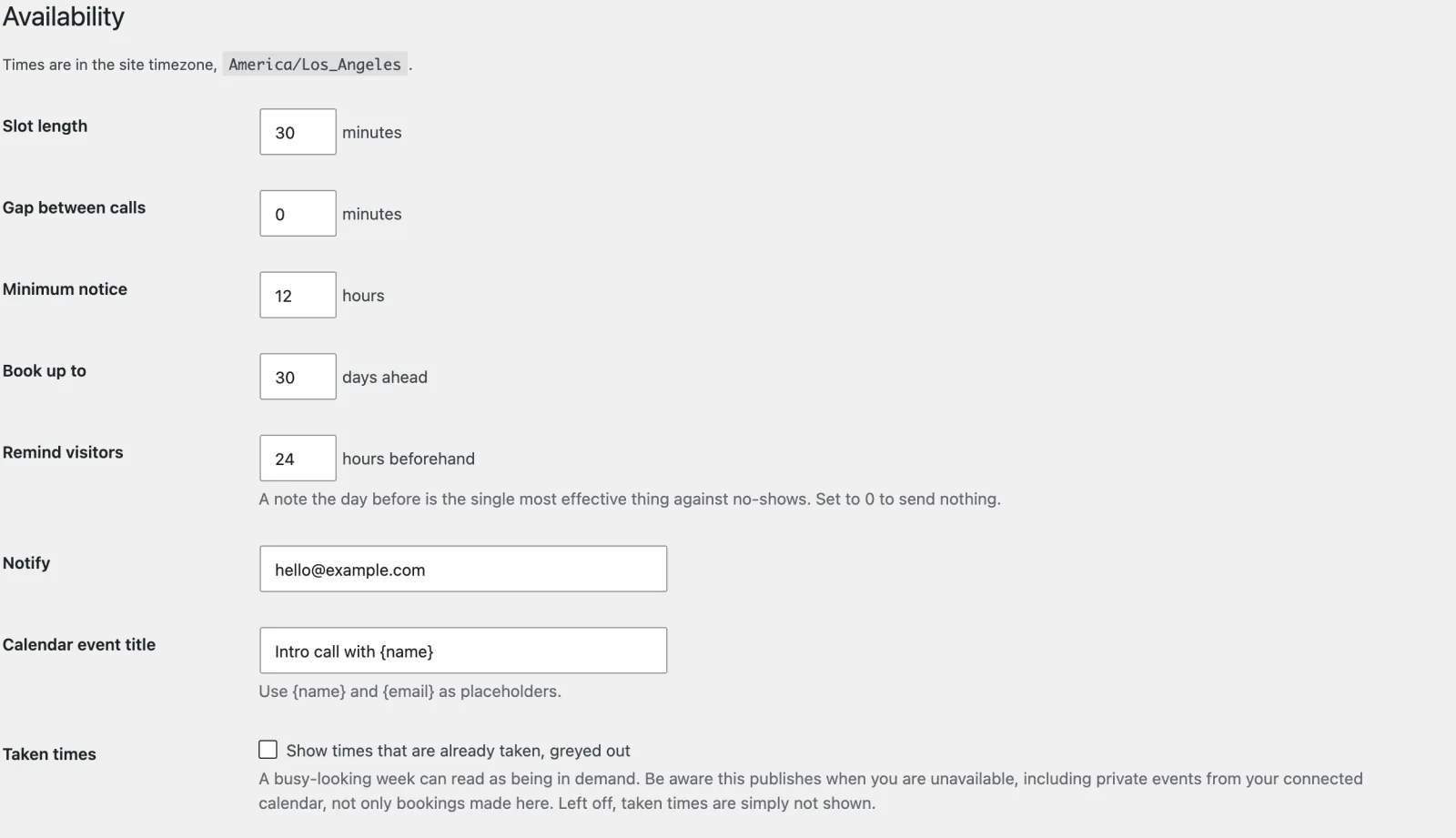
| Setting | What it does | Why you would change it |
|---|---|---|
| Slot length | How long each call is | 30 minutes suits most first conversations |
| Buffer | Dead time added after every booking | So two calls cannot land back to back with no gap to write notes |
| Minimum notice | How far ahead someone must book | Stops a stranger booking you in nine minutes’ time |
| Maximum advance | How far out the calendar runs | Keeps the picker short and your diary uncommitted |
| Reminder | Hours before a call that a reminder is sent | 24 is usual; set 0 to send none |
| Show unavailable times | Whether taken slots appear greyed out | Showing them makes a quiet week look busier than a blank grid does |
How clients pay
Card never takes a card or holds money. Bookings → How clients pay says how you get paid for a booked call, and Card tells each client once they have booked: on the confirmation, in the email, and on the link to move the call.
| Setting | What it does |
|---|---|
| Price of a booked call | 0 is free, as every profession’s starter wording says, and then nothing below is asked of anyone. Set a price and the appointment card shows it instead of “Free” (unless you wrote your own cost in the booking block). |
| As usual | On the day or by your invoice. On by default; if nothing else is ticked, it stays on. |
| Bank transfer | Your details as your bank gives them, typed once. Shown only to a client who has booked, with a reference (the booking’s number and their last name) so you can match the payment. Never on your public pages. |
| A payment link | A payment page from a provider you already use: a Stripe Payment Link, PayPal.me, Square, Mollie, Razorpay, your bank’s pay page. It must start with https://. Shown after booking as a button with the site it opens. Card holds no keys and takes no fee. |
| Deposit | None, a set amount, or a share of the price, rounded to the nearest coin, never more than the price. With no deposit and nothing paid as usual, the whole price is asked for. |
| Until it’s paid | Hold the time (the default): nobody else can book it, and if you haven’t marked it paid by the hours you set (48 to start with), it is let go and the client is emailed. The hold always ends an hour before the call; a call booked too late to pay is booked straight away. Confirm straight away: the deposit is information. |
The client is told before they press Confirm booking (for example “A $50 deposit is asked for when you book, by bank transfer. I hold the time for up to 48 hours while it reaches me, and confirm once it has.”).
Mark it paid. Card can’t see money arrive. Check your bank or your payment provider, then press Mark deposit paid on Bookings (held bookings are listed at the top, under Waiting for a deposit). That confirms a held booking and emails the client. Held bookings get no reminder until they are paid.
What your site says about paying (fees, invoices, insurance, superbills) stays in Your details → Services and fees → How to pay: that is information for visitors, and this is the booking’s side of it.
Automatic card payments through Stripe are planned for a later version.
Double booking is guarded three times over: the picker hides taken slots, the server re-checks the moment before it writes the booking, and Google Calendar is consulted for anything else in your diary. The middle one is the one that matters: it catches two people picking the same slot in the same second.