The front page
From the top: your label stuck over a photograph of the work, with your most recent finished job labelled on the photo; then What’s the job? (your services as photographs, each with a small label: the job, the price, when); How it works beside your price list (a tariff label); Recent jobs (before and after, labelled); reviews; Where we go (a photograph of your patch, the towns written on a label, and who turns up); and a closing label with what to do right now and your number.
The page is light. A few sections sit on a surface of their own: your label on a pegboard (the workshop wall), How it works and Where we go on concrete, the reviews on graphite. Service pages have their label on the pegboard and the quote form on concrete; other pages end on concrete. These are styles of the Group block: select a section (or any group), open Styles in the sidebar and choose Concrete, Graphite or Pegboard, or Default for the plain page. Your labels look the same on all of them. One graphite section to a page is plenty.
Everything that states a fact about your business comes from Appearance → Callout and stays hidden until you fill it in. That is deliberate: the theme will not put an invented price or registration number on your site.
| Setting | Where it shows |
|---|---|
| Facts under the call button | Up to four, one per line, ticked on your label on the front page and every service page (three on a phone). “No call-out fee”, “Jobs from £95”, “Usually there within 2 hours” |
| The owner | Your first name is written on your label (“By Dave”); your name, one line and your photo go on “Who turns up”. The best trade sites name the person who turns up |
| Review score and Registrations | The small print along the foot of your label, each linked to where it can be checked |
| Price list | “Straight prices” on the front page and “What we charge” on About. Write it the way you would say it on the phone |
| Service areas and A sentence above the towns | The towns, written on the “Where we go” label |
| Trust row | Small labels with your score, registration and two facts, wherever you add the Trust row block |
| Company details | The legal line in the footer |
Photos
Callout ships twenty-seven photographs from Unsplash so the demo looks finished: for each trade a hero and one for each starter service, two before-and-after pairs, a street for “Where we go”, and a few spares. They are stand-ins. Your own photos of your own jobs will outperform every one of them, and replacing them is the single best hour you can spend on the site:
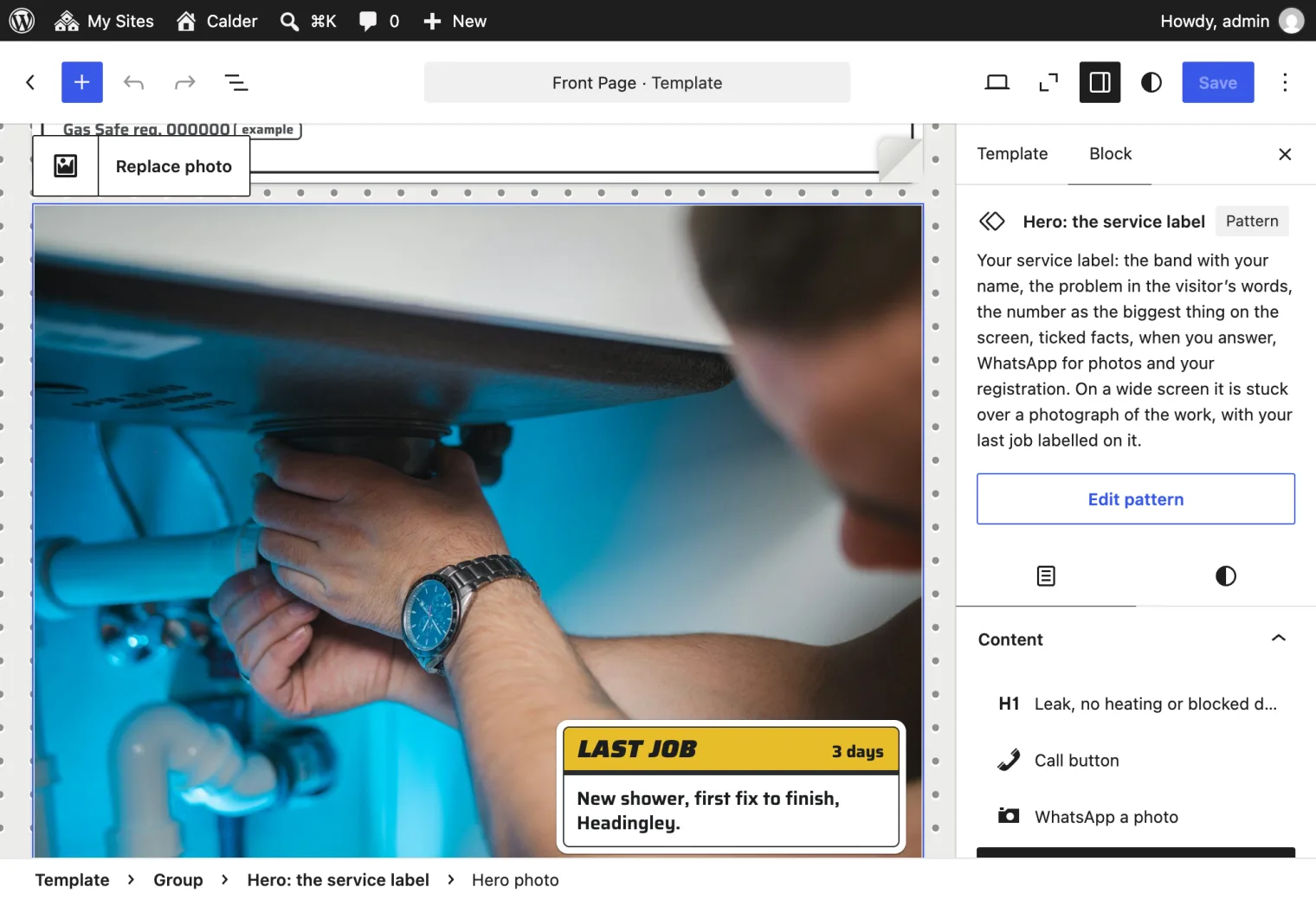
- The hero and the street: Appearance → Editor → Templates → Front Page. Click the photo, then Replace photo on the toolbar above it.
- The services: each one’s featured image, under Services.
- The jobs: under Work.
None of the starter photos shows a recognisable face, and you should not use a stock photo of a person as “our engineer”.
Changing your content
Callout is a block theme, so words and pictures are edited in two places.
Pages (Request a quote, Areas we cover, Reviews, About us, and any you add) are edited from Pages as on any WordPress site. Services and Work are their own records in the menu.
The front page is a template, not a page. It is built from sections: the hero, what’s the problem, how it works and prices, recent jobs, reviews, local, and the closing ring-now band. Edit it in Appearance → Editor → Templates → Front Page, where it looks exactly as it does on the site, filled in with your own phone number, prices, services and reviews.
- Words (headings, the line about your trade, the steps): click and type.
- The hero photo and the street photo: click the photo and choose Replace photo on the toolbar. Use the starter photo puts the original back. Describe the photo in the sidebar for anyone who cannot see it.
- A section you do not need: click it and delete it. To move one, drag it or use the arrows on its toolbar.
- Deeper changes inside a section, such as removing the WhatsApp link from the hero: select the section and choose Edit pattern.
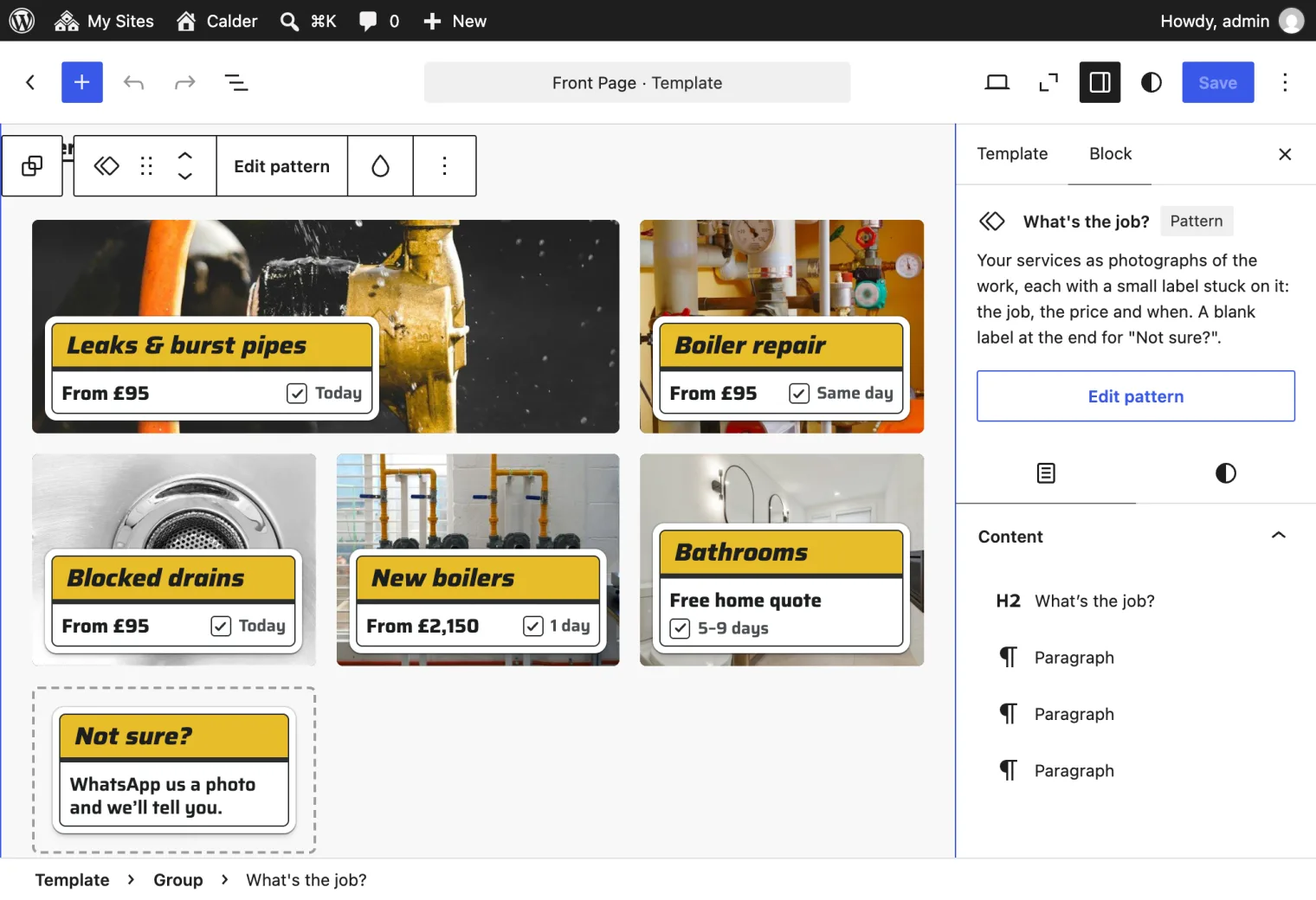
The parts filled in from your settings (call button, WhatsApp link, ticked facts, trust row, services, prices, recent jobs, reviews, towns, hours) are Callout’s own blocks. They are listed under Callout when you add a block, so any of them can go on any page or template: the price list on a service page, say, or the reviews on an area page. Some have a setting or two in the sidebar, such as how many reviews to show.
The header and footer are at Appearance → Editor → Patterns → Header and Footer. To change the menu, click it in the header and add, remove or rename its links.
Your phone number, WhatsApp, opening hours, trust row, price list, towns and owner fill themselves in from Appearance → Callout. Change them there, not in the editor, and they change everywhere at once.
Made a mess of a template? In Appearance → Editor → Templates, open the ⋮ menu beside it and choose Reset. It goes back to the theme’s version. Your pages, posts and settings are not touched.